Connect Claude, ChatGPT or n8n to your Drompl project. Ask for a mockup in plain words: your assistant picks the scene, shows a free preview and renders it once you say yes.
Early access: connecting assistants is open to a first group of Drompl accounts while we finish testing. Want to try it? Write to contact@drompl.com.
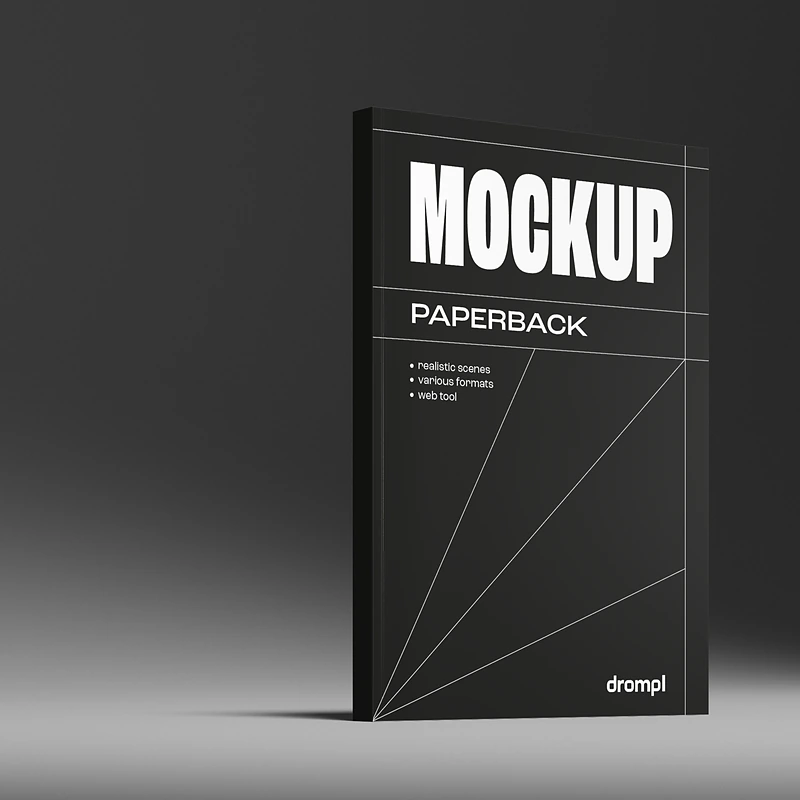
A standing paperback mockup of this cover, 6 × 9 in, on a grey backdrop with a soft shadow.
cover.png
Here’s a free preview. A 2000 px render costs 1 credit. Shall I render it?
Yes, go ahead.
Done. Your mockup is ready:
STANDING_SINGLE_2000.png
How it works
Ask. Check. Approve.
01
Connect once
Add the server address, sign in to Drompl, pick a project and set credit limits.
02
Describe it
Attach your design and say what you need: book or magazine, size, view, background.
03
See it free
The assistant shows a free 500 px preview and the price before anything is paid.
04
Get your files
Say yes and download links arrive in the chat. Renders also appear in your Export history.
Connect
Pick your assistant.
One address works everywhere. You sign in to Drompl, choose one project and how many credits the assistant may spend, and confirm with a code we email you. No key to copy.
Claude
Sign in
claude.ai, Claude Desktop and mobile
Open Settings → Connectors and choose Add custom connector.
Name it Drompl and paste the server address.
Click Connect, sign in to Drompl and approve.
https://drompl.com/mcp
To let Claude send your attached images to Drompl itself, turn on code execution and allow drompl.com in Claude’s network settings. Otherwise Claude gives you an upload link to drop the images on.
ChatGPT
Sign in
ChatGPT on the web
Open Settings → Apps & Connectors → Advanced settings and turn on Developer mode.
Create a connector named Drompl with the server address and OAuth authentication.
Sign in to Drompl and approve. Then turn Drompl on in a chat.
https://drompl.com/mcp
Images you attach in the chat go to Drompl directly. ChatGPT asks you before every paid step. It can’t show preview images inside the chat yet.
Claude Code
Sign in
In your terminal, then type /mcp to sign in
claude mcp add --transport http drompl https://drompl.com/mcp
Coding assistants upload images straight from your disk, up to 20 at a time.
n8n
Sign in or key
Automations, with or without AI
Add an MCP Client Tool to your AI Agent node.
Endpoint: the server address. Transport: HTTP Streamable.
Authentication: MCP OAuth2 with Register Client Automatically, or Bearer Auth with a key.
No AI needed? Import our ready workflow: an image goes in, finished mockups come out.
Other assistants and your own code
Key
Any app that can add a remote MCP server (Streamable HTTP) can use the same address: Gemini CLI, Grok and others sign in the same way. Apps that only take a token, such as the OpenAI, Anthropic and xAI APIs, use an API key you create in Drompl. See the developer guide.
Your images
Your design, untouched.
Assistants see the images you attach but can’t always pass the file on. Drompl gives each one a way to deliver your original, never a redrawn copy.
ChatGPT
Attach the image in the chat. ChatGPT hands the file to Drompl, which downloads it.
Claude
Claude sends the file from its code environment. If that’s off, it gives you an upload link: open it and drop up to 20 images.
Claude Code, Codex
The assistant uploads files from your computer through the same kind of link.
Already in Drompl
Images you uploaded to the project on the website are there too. Ask the assistant to use them.
A public link
Any https link to a PNG, JPEG or WebP image works as well.
You stay in control
Your credits. Your rules.
Credit limits
Set a daily and a total limit when you connect. Drompl enforces them, whatever the assistant tries. Set 0 to allow previews only.
Price before paying
The assistant shows the free preview and the cost first, and renders only after you agree.
One project
A connection sees only the project you picked, never the rest of your account.
Email confirmation
Every new connection and every higher limit needs a code sent to your email.
Revoke any time
Open Settings → Agent integrations in the editor to change limits or disconnect. A connection lasts up to 90 days.
Short-lived links
Download links work for 15 minutes; ask again for fresh ones at no cost. Renders stay in Export history for 7 days.
What it can make
The whole editor, by request.
Covers
Magazines, paperbacks and hardcovers: lying, standing, stacked. Front only, or a full wrap with spine.
Spreads
Open magazines and books, two pages or a single ad page.
Patterns
Grids of covers, spreads, presentations, or a mix, with a separate image per cell.
3 shadow types
Hard, medium or soft, kept in the image or delivered as a separate layer.
Backgrounds
Transparent, any solid colour, photo textures or lit backgrounds.
Any format, 4K
PNG up to 4000 px where available. Free conversion to WEBP, JPG, AVIF, TIFF or PSD.
Prices
Same credits as the website.
No subscription for the connection itself. Prices are fixed, so the price you’re shown is the price you pay.
The Model Context Protocol is the standard way AI assistants connect to outside services. Drompl runs an MCP server, so any assistant that supports it can find scenes, upload your images, preview and render mockups.
Can the assistant spend more than I allow?
No. The daily and total credit limits are checked by Drompl on every render, not by the assistant. When a limit is reached, rendering stops until you raise it.
Does the assistant change my design?
No. Drompl places your original file on the mockup. Assistants are told to pass your file on as it is: no redrawing, resizing or recompressing.
Where are my finished files?
The assistant gives you download links that work for 15 minutes; ask again for fresh links, at no cost. The renders also appear in Export history on the website for 7 days.
My size isn’t in the list. What happens?
The assistant looks for scenes with the same proportions as your image and tells you how close the nearest one is, like the editor does.
How do I disconnect?
In the editor, open Settings → Agent integrations and revoke the connection. “Sign out on all devices” disconnects every assistant at once.
We use essential cookies to run Drompl (session, CSRF, beta access). Optional ones are separate: Google Analytics cookies, detailed usage analytics linked to your Drompl account, and Google Ads advertising cookies that show us which ads lead to sign-ups. Accepting enables them all, rejecting turns them all off — or use Manage preferences to choose each one. Essential cookies and anonymous counters remain either way.Cookie policy